Best Mac Screen Recorders for No-Code Portfolio Demos in 2026: the buyer’s shortlist
Compare Toads, Loom, and Apple’s recorder for no-code portfolio demos, with a practical brief for showing workflows and your contribution.

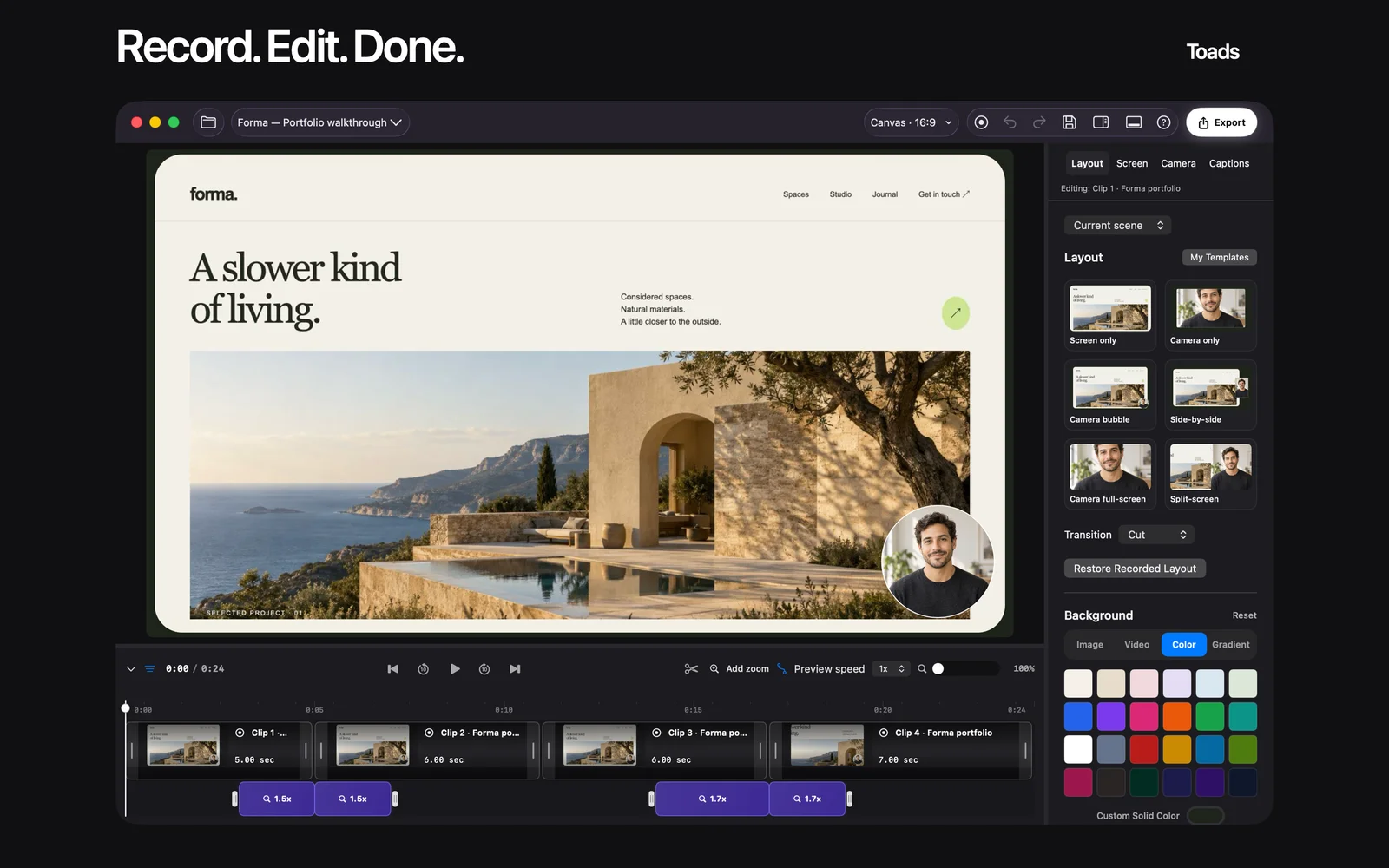
Toads is our first option for no-code builders who want to record, edit, and export a portfolio demonstration on Mac. Loom fits a hosted walkthrough sent for feedback. Apple’s built-in recorder is a useful baseline for a simple capture. The best Mac screen recorder for a no-code portfolio depends on what an employer needs to see and where you will deliver the result.
Turn a working project into a clear demonstration: Explore Toads for Mac and review its current recording, editing, and trial details.
Ownership disclosure: I run No Code Jobs and Toads. This is an owner-written comparison of a related product and alternatives. It uses official product information rather than a recording benchmark. The cover is official product imagery.
Key takeaways
- Show a working task. A portfolio reviewer needs to understand the input, the workflow, and the result. A tour of menus does not establish your contribution.
- Toads fits an edited export. It combines capture, a native editing timeline, captions, and file export. Evaluate it when the demonstration needs cuts or a careful explanation.
- Loom fits hosted sharing and feedback. A link can be convenient during a hiring conversation. Check viewer access and current plan limits before relying on it.
- Apple’s recorder is a useful starting point. Try it for a short capture with little finishing work. Include any separate editing work when comparing the full process.
- State your role in the project. Explain what you built, which parts came from a template, and what other people contributed. Clear attribution makes the demonstration more useful.
What a no-code portfolio demo should show
A portfolio demo should make one piece of work understandable. For a Bubble app, that may be a user action and the resulting workflow. For an automation, it may be the input, the rules applied, and the output another person receives. Choose a task relevant to the role you want.
The recording can show behavior, but it cannot prove every claim about the project. Put your responsibilities, design decisions, and limitations in accompanying text. Distinguish a prototype from a live customer system, and use demonstration data where access to client material is not appropriate.
Plan the viewer’s next question. If you show a successful automation, explain what happens when an input is missing or an action needs approval. A useful portfolio can discuss those boundaries without displaying private records or a production account.
How we compared these Mac screen recorders
We assessed capture, editing, delivery, and the publicly described payment model. The shortlist favors a builder producing a reusable demonstration file. Official pages were reviewed on October 23, 2026. The order reflects workflow fit rather than measured recording quality.
Use the same short sample in every tool. Record one action, a small interface label, and a result. Include a deliberate pause you need to cut so you can evaluate finishing as well as capture.
The best Mac screen recorders for no-code portfolio demos
1. Toads, best for recording and editing a portfolio video in one Mac app
Toads is a native Mac recorder and editor. Its public site lists display, window, or selected-area capture, timeline editing, captions, and transcript tools. That combination fits a portfolio video where you need to remove waiting or explain a sequence clearly.
The website currently offers a seven-day trial followed by $99 once. It lists use on three personal Macs and future major Mac app updates. Review the current system and license requirements before purchase; a personal-device allowance is not a team license.
Toads also advertises MCP for agent-assisted editing. Read the current connection guide for the supported setup. Review cuts, captions, and the final timeline before exporting. An agent instruction is a starting point for an edit, not a substitute for checking what the viewer will receive.
Best suited for: Builders preparing an edited file for a portfolio page, application, or chosen video host. Choose a hosted-sharing product separately if viewer discussion and link management are your main requirement.
2. Loom, best for a hosted walkthrough in a hiring conversation
Loom provides screen recording with hosted sharing and feedback. It is worth evaluating when you want to send a reviewer a watchable link and collect questions about the project.
Check the current plan’s recording length, quality, and editing limits. Also review who can open the video. A private application walkthrough and a public portfolio are different sharing choices, even when the footage is similar.
Best suited for: A quick explanation shared with a recruiter, client, or collaborator. Evaluate export and finishing separately when you also need a reusable file outside the hosted workflow.
3. Apple’s recorder, best for a simple capture before buying another tool
Apple’s screen-recording guide covers the Mac Screenshot app and QuickTime Player. Start here when you need a short capture and do not yet know whether a dedicated editor will help.
The available capture and audio options depend on your macOS version. Record a short sample, then check the saved file with sound. If you need repeated cuts, captions, or several takes, include the separate finishing process in your decision.
Best suited for: A short proof of a working interaction or a supporting clip. It is a sensible baseline for understanding what extra editing features your portfolio actually needs.
Need to cut pauses and finish the explanation? Review Toads’ editing workflow and compare it using the same sample task as the other recorders.
Side-by-side comparison
| Recorder | Main shortlist use | Delivery | Payment check |
|---|---|---|---|
| Toads | Native capture and editing | Exported video or GIF | Website lists $99 once after a seven-day trial |
| Loom | Hosted walkthrough and feedback | Viewing link | Check current plan and recording limits |
| Apple recorder | Simple capture | Saved recording file | Included with the Mac’s system tools |
Plan the portfolio demonstration
| Portfolio project | Show in the recording | Explain in the text |
|---|---|---|
| No-code app | One user task from start to result | Your contribution and relevant constraints |
| Business automation | Input, processing, and output | Failure handling and approval boundaries |
| AI-assisted workflow | A supported task and human review | Tool access and what requires confirmation |
| Client project | A permitted demonstration with safe data | Your role and what you can disclose |
Prepare, record, and review
Write a brief opening that names the task and your contribution. Prepare the demonstration state and close unrelated content. Record the sequence, then remove repetition that does not help explain it. Keep a necessary approval or limitation visible.
Check captions and small text in the exported file. Watch it with sound and again without sound. Add a short written summary so the portfolio still communicates the main result before playback.
For a job application, review the employer’s instructions before sending a link or file. This guide does not claim a recorder improves interview or hiring rates. Its purpose is to help you present work a reviewer can understand.
FAQ
What is the best Mac recorder for a no-code portfolio video?
Toads is our first option for an edited recording exported from a native Mac workflow. Loom and Apple’s recorder fit different sharing and editing needs.
How long should a portfolio demonstration be?
Use the shortest recording that explains the task, your contribution, and the result. Remove repetition before removing a step needed to understand the workflow.
What does Toads cost?
The website currently lists a seven-day trial followed by $99 once. Review current purchase and license terms before starting.
How can MCP help with a Toads edit?
Toads advertises agent-assisted editing through MCP. Follow the current setup guide and review the timeline and final export after changes.
What should I say about a template or team project?
State which parts you built, reused, or changed and what other people contributed. The recording and accompanying explanation should describe the same scope of work.
How do I keep client information out of the video?
Use permitted demonstration material and close unrelated content before capture. Inspect the final export for account, customer, or confidential project information before sharing it.
Make one project understandable
Choose a task relevant to your target role. Show its starting state and result. Explain your contribution and one meaningful constraint. Edit the recording so the viewer can follow the sequence. Keep the final file and project notes for future updates.
Record your next portfolio walkthrough: Visit Toads for the current Mac download, trial, and feature details.
Sources and review scope
Reviewed October 23, 2026: Toads, Toads MCP guide, Loom, and Apple’s recording guide. The portfolio framework is editorial guidance, not a hands-on benchmark or a hiring-outcome claim.