How to Organize and Search Screenshots for Bug Reports on Mac
Use Screen Index to find screenshot evidence for bug reports, with a workflow for ticket IDs, environment notes, original files, and safe sharing.

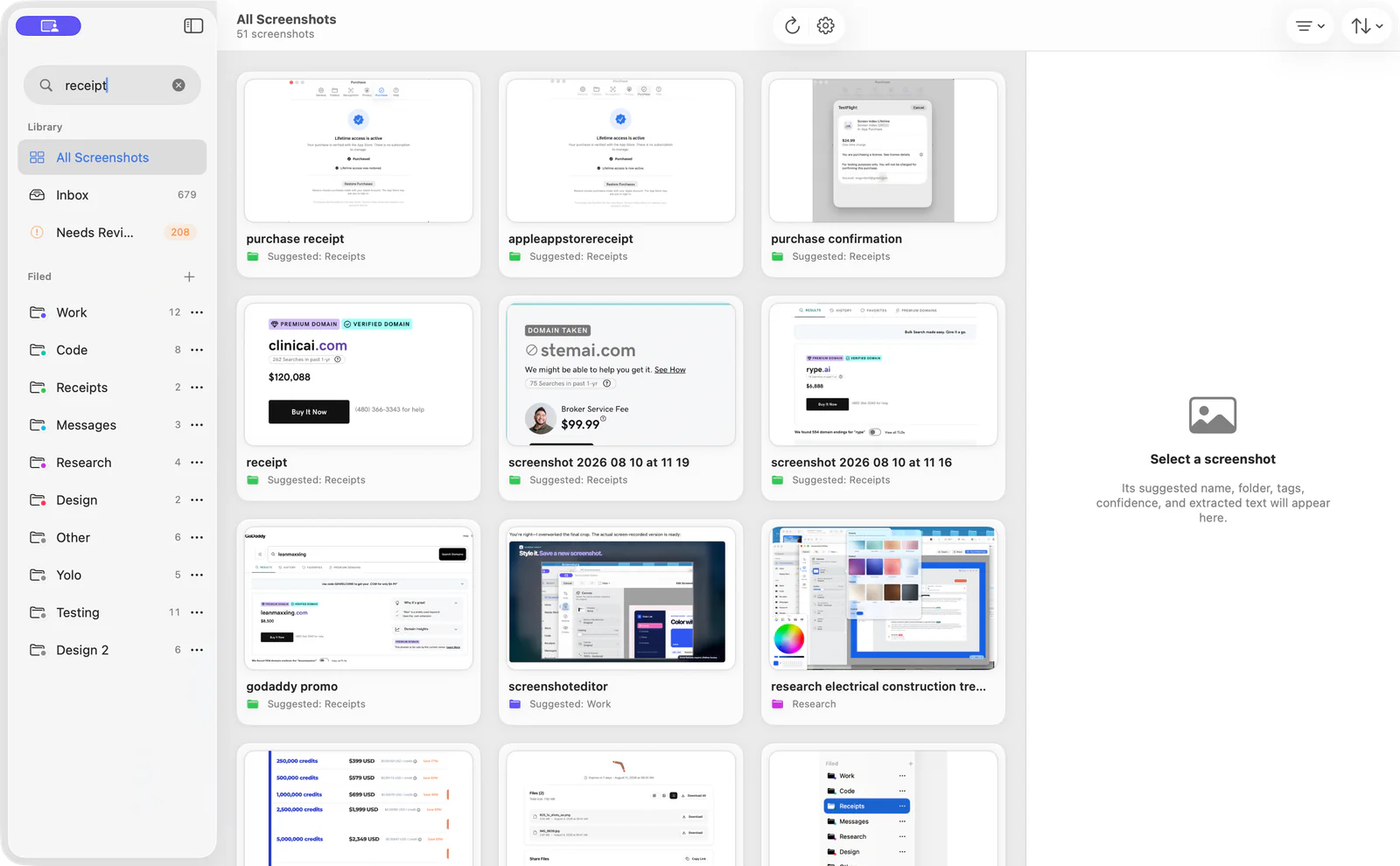
To organize screenshots for bug reports, keep the original image, connect it to a ticket and environment note, and make a separate copy for sharing. Screen Index can help find the image by visible text or file name when you remember an error but not the capture date. Use that search alongside reproduction steps so another builder can understand what happened.
Remember the error but cannot find the screenshot? Explore Screen Index for Mac for local screenshot search, organization, and editing.
Ownership disclosure: I run No Code Jobs and Screen Index. This is an owner-written workflow guide for a related product. Product details come from official documentation, and the cover is official marketing imagery.
Key takeaways
- A screenshot is part of the report. It shows a visible state, but it does not establish every step that led there. Keep the expected result, observed result, and reproduction steps in text.
- Keep originals and shareable copies distinct. Use the original as evidence and edit a separate copy for annotation or privacy. Check the exported file before attaching it.
- Search the words in the image. Screen Index supports visible-text and file-name search in its free version. A distinctive error phrase can be more useful than a guessed capture date.
- Record the environment separately. Note the app, version or deployment, test account type, and capture date where relevant. Search cannot infer context that was never recorded.
- Choose sharing deliberately. Local screenshot search and uploading an attachment are separate actions. Review what the recipient will receive, especially when a client or production system is involved.
What a screenshot contributes to a bug report
A screenshot helps another person inspect an interface state. It can show the message, selected setting, missing element, or unexpected result you want to discuss. Give it a caption that connects the image to the report’s main observation.
The image is less useful when a reviewer must guess the steps or the expected behavior. Add those in ordinary text. For a no-code workflow, explain which action triggered the result and which environment you used. Do not assume the visual editor and the deployed app have identical state.
Some evidence belongs in a more suitable format. A sequence may need a short recording. A response or error code may need carefully redacted text. Avoid making the screenshot the only place a reviewer can read an important detail.
Step 1: Save the original with a ticket context
Use a folder for the project and a simple naming convention for the ticket or task. For example, APP-142-save-error-original.png tells you more than an isolated timestamp. The label is a suggested convention, not a required Screen Index format.
Keep a note beside the report with the environment, capture date, and reproduction steps. Link to the original file through the project’s normal process. Do not move a client’s private screenshots into a public folder to make them easier to find.
| Record | What to include | Why it matters |
|---|---|---|
| Original image | Unedited capture and ticket reference | Preserves the state you observed |
| Environment note | App, version or deployment, date, account type | Explains the conditions |
| Reproduction steps | Starting point and actions | Helps another builder investigate |
| Expected and observed result | Two short descriptions | Makes the discrepancy clear |
| Shareable copy | Relevant crop, annotation, and privacy edits | Keeps the attachment readable and appropriate |
Step 2: Find the image with Screen Index
Screen Index’s free Library searches file names and words visible inside screenshots. It works with the normal Finder folder you choose. You can also use folders and tags to organize evidence around a project or ticket.
Search for a distinctive fragment from the error or interface. Open the matching image and inspect it before attaching it to a report. Similar messages can appear in different environments, so check the ticket context and date instead of assuming the first match is correct.
The public site says OCR and the search index run on your Mac, without an account or developer-run screenshot upload. That describes the search workflow. Sharing a file through a ticket system or another app is a separate action with a recipient you choose.
Step 3: Add another clue when text is not enough
Lifetime adds Global Recall, richer search, Quick File, Capture Context, and presentation tools. Those features can help when you remember something beyond a file name or visible phrase. Check the current feature and hardware requirements before relying on a particular search clue.
The app requires macOS 26 or later. Its stated 14-day Lifetime trial starts after the first new screenshot is successfully processed. The free version continues without an expiry for its included features.
Capture Context can retain source-app information and, with permission, an active webpage. An exact source page is available only when it was actually captured. Keep the ticket’s environment note even when the image has useful source context.
Build a searchable bug-evidence folder: Read Screen Index’s text-search guide and try a distinctive phrase from one of your own screenshots.
Step 4: Prepare the copy another person will see
Crop around the relevant state while retaining enough context to understand it. Use a short annotation for the element you want the reviewer to inspect. Keep the exact error text in the report when that helps investigation.
Remove private customer information, account identifiers, and unrelated content from the sharing copy. Inspect the exported image at its actual viewing size. A crop or privacy edit in the editor is not the final check; the attachment itself is what the recipient receives.
Use a caption such as “Save error after changing the status in the test environment.” Avoid a caption that claims the image proves the underlying cause. A visible failure and its root cause are different findings.
Which evidence format fits the problem?
| Problem | Useful evidence | Add in text |
|---|---|---|
| Unexpected message or visual state | Screenshot | Trigger action and expected result |
| An error appears only during a sequence | Short recording plus a key screenshot | Reproduction steps and environment |
| A specific response or code matters | Redacted text and context image | The exact relevant value and conditions |
| A bug returns after an update | Before and after evidence with dates | Versions and what changed |
Keep the report useful as the project changes
When a builder asks for more context, add it to the ticket rather than leaving it only in a private conversation. Keep the original evidence date attached to the image. If a later version behaves differently, capture new evidence and label the new conditions.
For a resolved ticket, keep enough context to understand what was observed and what was checked afterward. Follow the project’s retention rules for private material. This guide offers an organizational workflow, not a claim that screenshot search identifies a root cause or guarantees a faster fix.
FAQ
How do I find a screenshot by an error message on Mac?
Screen Index can search visible screenshot text and file names in its free Library. Try a distinctive phrase, then inspect the result and its context before using it.
What belongs beside a bug screenshot?
Include reproduction steps, expected behavior, observed behavior, and the relevant environment. A screenshot usually does not establish those conditions on its own.
How should I name screenshot evidence?
Use a project or ticket reference plus a short description and distinguish originals from edited copies. Choose a convention your team will use consistently.
What remains free in Screen Index?
The public site lists visible-text and file-name search, folders, tags, and basic editing without an expiry. Lifetime adds richer search and workflow features.
How does Screen Index handle screenshot search privacy?
Its documented OCR and search index run on the Mac, with originals in the Finder folder you choose. Uploading a file to a ticket or another service is a separate sharing action.
How do I keep an attachment safe to share?
Make a separate copy and remove information the recipient should not receive. Inspect the exported file before attaching or publishing it.
Make the next bug report easier to follow
Choose one ticket and gather the evidence that supports its observation. Record the environment and reproduction steps. Keep the original and an edited sharing copy. Test whether you can retrieve the image from a phrase you remember. Send the report only after reviewing the actual attachment.
Find the screenshot and finish the report: Visit Screen Index for its current Mac requirements, download, and free and Lifetime features.
Sources and review scope
Reviewed October 23, 2026: Screen Index and its OCR text-search guide. The evidence checklist is an editorial workflow, not an automatic integration with a ticket system or a measured debugging result.